
How do I create a Menu QR code?
Updated September 14, 2026 · 2 min read
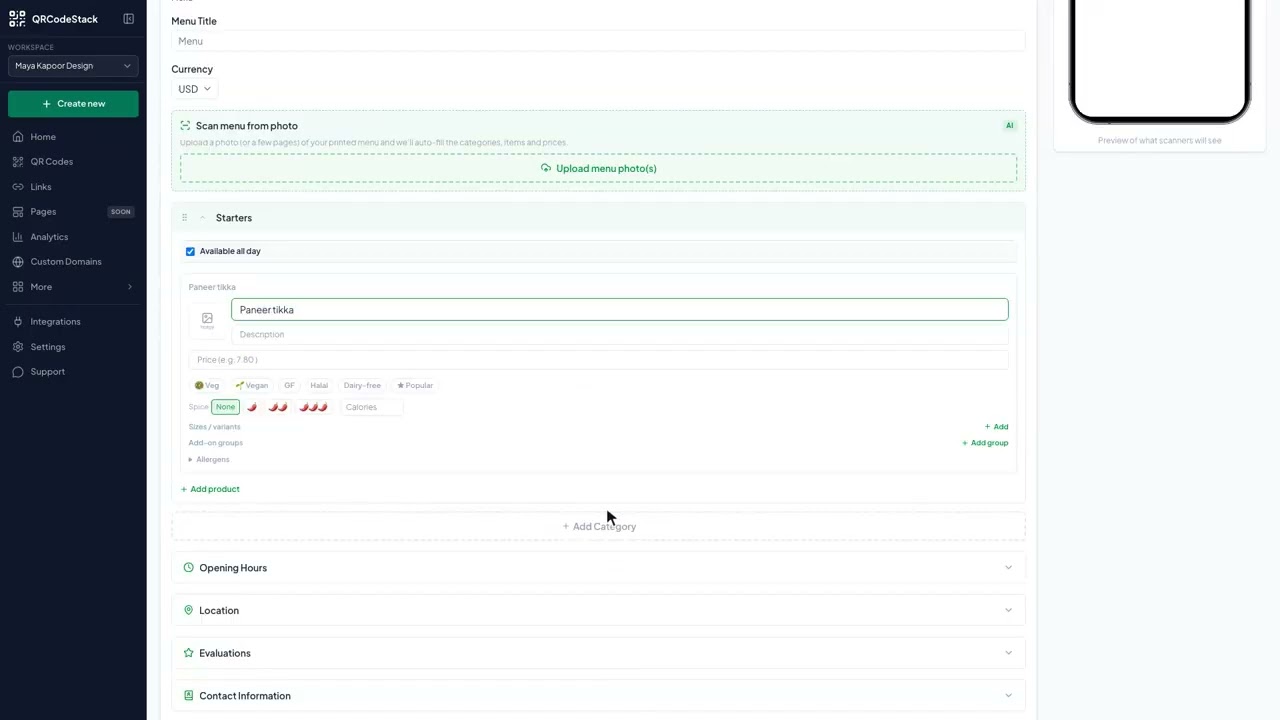
Click Create new, then Create a QR Code, click More on the Type step and choose Menu. Name of Establishment is the only field you must fill; a Starters category is already there, so add a dish Name and a Price, then click Add Category for mains and drinks. Menu codes are dynamic only, so editing a dish or a price updates every printed table tent immediately.
Video transcript
Here is how to create a Menu QR code. One scan opens a mobile menu with your dishes, descriptions, and prices, grouped by category.
Use it on table tents and counters, on takeaway windows and delivery bags, and anywhere prices change often. Because the code is dynamic, you can edit a dish or a price later and every printed code shows the new menu.
In the dashboard, click Create new, then Create a QR Code. Pick Menu from the type grid and leave it on Dynamic. Give the code a name, then type the restaurant name, a short tagline, the first dish name, and its price. Choose a theme, then Download. The code is saved and ready to print.
Three things matter. First, the restaurant name. It is the only field you must fill. Second, the dishes. Each one needs a name and a price. Third, the categories. Starters is there already. Add mains, drinks, or desserts the same way.
Try it on the seven-day free trial. No credit card, five dynamic QR codes. Link in the description.
When to use a Menu QR code
- Table tents and counters. Guests scan from the table and read the menu on their phone.
- Takeaway windows and delivery bags. The bag or the window carries the full menu for the next order.
- Specials and price changes. Edit a dish or a price and every printed code shows the new menu.
The menu QR code generator runs the same wizard if you want to build one before signing in.
Steps in the dashboard
- Open the wizard. In the dashboard, click Create new, then Create a QR Code.
- Pick the type. On the Type step the grid shows the first 15 types, so click More to show the rest and choose Menu. This type is dynamic only, so the Dynamic tab is already selected and Static is unavailable.
- Fill in the content. Click Next →. The first field is QR Code Name — it is optional and only for your own list. Then, under Basic Information:
Field What it does Name of Establishment Required. Sits at the top of the menu. Description Optional tagline under the name. Menu Title The heading above the dishes. Defaults to Menu. Currency Sets the symbol on every price. Defaults to USD. Categories Starters exists already; rename it, then use Add Category for the rest. Dishes Each needs a Name. Description, price and calories are optional. Opening hours, address, phone and social links live in the collapsible sections below the dishes and are all optional.
- Design and download. Click Next → to reach QR Design, pick a theme or set your own colours, then click Download ✓. The code is saved to My QR Codes at the same time.
Filling the menu from a photo
Instead of typing every dish, use Scan menu from photo at the top of the form. Upload a photo of the printed menu — up to six images, each under 8 MB — and the categories, items and prices are filled in for you. Check the result before you move on; prices read from a bad photo are the usual thing to fix.
Photo scanning needs a paid plan or an active free trial, the same as the Menu type itself.
Common problems
Prices show the wrong symbol
Set Currency near the top of the form. Typing a symbol into a dish price does not change the currency used elsewhere on the page.
A dish is missing from the page
Dishes without a Name are skipped. Fill the name in, or remove the empty row.
The photo scan found nothing
You will see a message asking for a clearer photo. Shoot the menu flat, in good light, one page per image.
Frequently asked questions
Do I have to reprint when a price changes?
No. Edit the dish and save — see updating a menu without reprinting.
Is Menu available as a static code?
No. Menu is dynamic only, because the menu page is hosted for you.
Can I use one code for lunch and dinner menus?
One code shows one menu. Use separate categories on the same menu, or a second code.
Do guests need an app?
No. The menu opens in the phone's browser.
Related articles
How do I create my first dynamic QR code?
Click Create new, pick a type, leave the toggle on Dynamic, fill in the content, style it, then click Download. The code is saved with its redirect built in.
How do I edit a QR code's destination after printing?
Open the code, click Edit, change the destination on the Content step and click Update. The printed pattern keeps working. Static codes cannot be edited.
Can I download my QR code as SVG, PDF or another vector format?
Yes. Open the code, click Download, and pick SVG in the Save as... dialog. JPEG, PNG and PDF are there too. Paid plans and the free trial get all four.
How do I update a restaurant menu QR code without reprinting?
Open the Menu code, click Edit, change the price or dish on the Content step and click Update. Table tents and window stickers keep working unchanged.
How do I create a Feedback QR code?
Pick Feedback in the wizard, fill in the business Name and the Title question, then download. Scanners rate you and leave a comment; responses land in Data Hub.
Still stuck?
Email support@qrcodestack.com with the email on your account and, if it is about one code, its name or short link. A person replies within one business day, usually sooner.