
How do I update a restaurant menu QR code without reprinting?
Updated September 14, 2026 · 3 min read
Open the Menu code in My QR Codes, click Edit, change the price, dish or category on the Content step, and click Update ✓. Guests who scan after that see the new menu. Nothing on the table changes: the printed pattern encodes a fixed QRCodeStack link, and only the menu behind it is updated. The Menu type is always dynamic, so every menu code works this way.
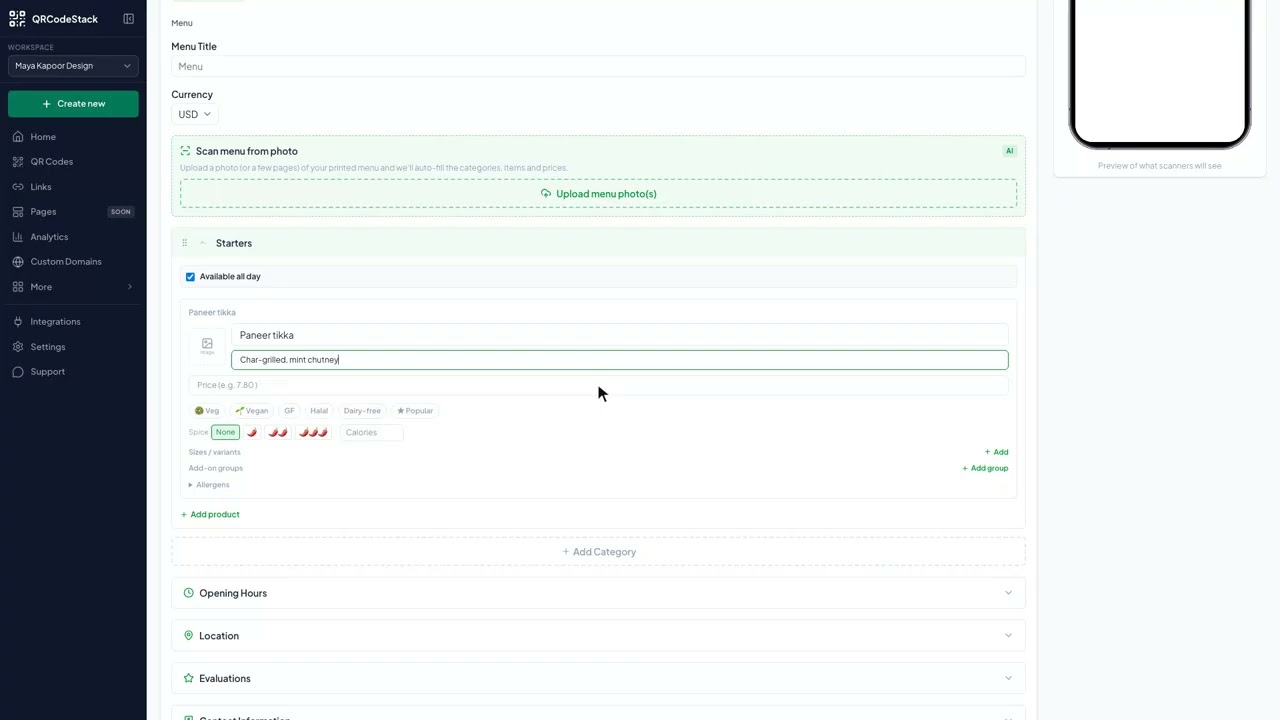
In this video
Video transcript
Here is how to set up a QR code menu for a restaurant. Guests scan a table tent and see your dishes and prices on their phone, and you update it without reprinting.
Guests get a mobile menu grouped by category, with descriptions, prices and photos. Sizes, sauces and add-ons can carry their own prices. And it stays current. Change a price or take a dish off, and every printed code shows the new menu.
In the dashboard, click Create new, then Create a QR Code. Pick Menu and keep it on Dynamic. Name the code, type the restaurant name and a tagline, then add the first dish with a description and a price. The phone preview shows what guests will see. Choose a theme, then Download.
When a price changes, open the code, click Edit, change the price, and click Update. The table tents stay where they are.
Plan the print run. First, one code per table or zone. Name it that way, so you can see where guests scan most. Second, export SVG or PDF for table tents and window stickers. Third, this type displays the menu. It does not take orders or payments.
Try it on the seven-day free trial. No credit card, five dynamic QR codes. Link in the description.
Changing a price or a dish
- Go to My QR Codes and open the Menu code. Search by name if you have several — one per restaurant, or one per room.
- Click Edit.
- On the Content step, open the category that holds the dish and edit its Price, Name or Description. The phone preview beside the form shows what guests will see.
- Click Update ✓ at the top of the wizard.
- Scan a table tent with your own phone to confirm the change is live.
Stay on the Content step. Changing anything on the QR Design step regenerates the image — the printed codes still work, but the artwork in your account no longer matches what is on the tables.
What you can change without reprinting
- Prices, on dishes and on size or add-on options.
- Dishes — add one with Add product, or remove one that is off.
- Categories — add one with Add Category, rename or reorder them, and use Available all day to restrict a category to certain hours and days for a breakfast or lunch menu.
- Currency, restaurant name, tagline, address, phone, website and opening hours.
- Photos, dietary markers, spice level and calories on individual items.
All of it is behind the same code. There is no republish step and no separate menu app to update.
Planning the print run
- One code per table or zone, named accordingly — Table 12, Terrace. Scan counts per code then tell you where guests actually scan. Each one counts against your plan's dynamic-code allowance, so match the number of codes to the plan.
- Export SVG or PDF for table tents and window stickers. Both stay sharp at any size; see the minimum print size for a QR code before sizing them.
- Test on a real table — printed size, laminate glare and low light matter more than screen previews.
- Remember what the type does. The Menu code displays your menu. It does not take orders or payments.
Common problems
The old price is still showing on my phone
Your browser cached the page. Open it in a private window, or clear the browser cache, and scan again. A guest who has not opened it before sees the new price immediately.
I changed the design and now the code looks different
The image was regenerated. The printed codes still work — the link inside them is unchanged — but download the new image again if the artwork has to match.
The table tents stopped working altogether
That is not the menu content. Check whether the code is archived, whether an expiry date or scan limit is set, and whether the plan is active — see whether a QR code expires or stops working.
I have one code per table and now I have to edit them all
Each Menu code carries its own content, so a price change has to be made on each one. If you do not need per-table scan counts, print the same single code on every table and edit it once. If you do, keep one code per table and accept the extra edits, or point several table codes at one menu by using URL codes that lead to the same menu page.
Frequently asked questions
Do guests need an app to see the menu?
No. The camera opens the menu in the phone's browser.
How quickly does a price change go live?
On the next scan. There is no publishing delay.
Can I take a dish off for one evening and put it back?
Yes. Remove the item and add it again later, or restrict its category to certain hours with Available all day switched off.
Can the menu take orders or payments?
No. The Menu type displays your menu to guests.
Should I print one code for the whole room or one per table?
One per table or zone if you want to know where guests scan. One code for the room is fine if you only need the menu itself.
Related articles
How do I create a Menu QR code?
Pick Menu in the wizard, enter the establishment name, then add categories and dishes with prices. Scanners open a mobile menu you can edit any time.
How do I edit a QR code's destination after printing?
Open the code, click Edit, change the destination on the Content step and click Update. The printed pattern keeps working. Static codes cannot be edited.
How do I put a QR code on business cards?
Create a dynamic vCard Plus code, export it as SVG or PDF, place it at least 2 cm square with clear space, and scan the printer's proof before the run.
What size should I print my QR code?
Print at least 2 cm square for a phone held close. Further away, divide the scanning distance by 10. Always leave a clear margin around the pattern.
Still stuck?
Email support@qrcodestack.com with the email on your account and, if it is about one code, its name or short link. A person replies within one business day, usually sooner.