
How do I create a barcode (EAN-13, UPC, Code 128)?
Updated September 14, 2026 · 2 min read · Starter, Pro and Business (paid plans only)
Open Create new → Create a QR Code, click More under the type grid and pick the Barcode tile. Choose the Barcode Format, type the number into Barcode Value * and click Download ✓. Barcodes are Static only — the Dynamic tab is disabled with the tooltip "Barcode is only available as Static" — and static codes need a paid plan, so the free trial cannot create one.
Video transcript
Here is how to create a Barcode QR code. It is a print ready retail barcode in the format your product needs.
Use it on product packaging, on shelf labels and price tags, and on the outer carton with a shipping format. A barcode is static, so the number is printed into the bars. Check it once and it is ready to go.
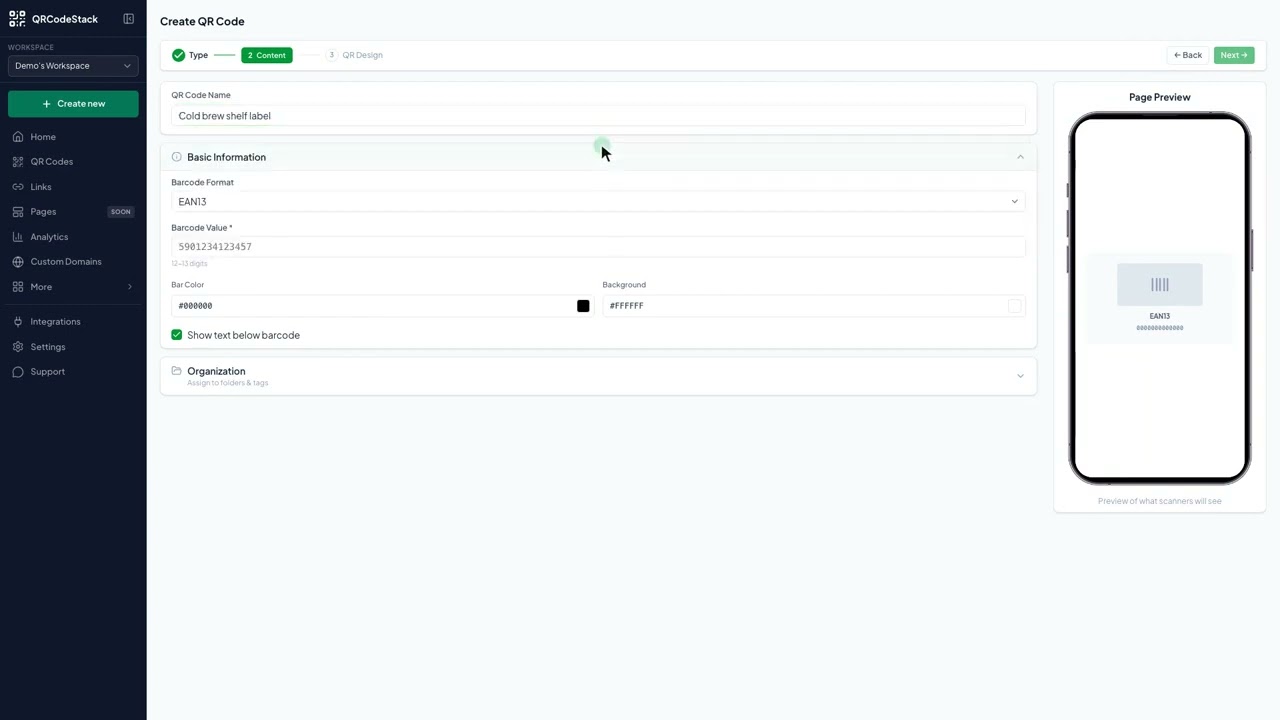
In the dashboard, click Create new, then Create a QR Code. Click More, pick Barcode from the type grid and choose Static. Give the code a name, choose the barcode format, then type the barcode value. Choose a theme for the code itself, then Download. The barcode is saved and ready to print.
Three fields matter. First, the format. Retail packs use the worldwide retail format. Second, the value. Type the number under your existing barcode exactly. Third, the text below the barcode. Leave it on so the number prints under the bars.
Try it on the seven-day free trial. No credit card, five dynamic QR codes. Link in the description.
When to use a barcode instead of a QR code
- Product packaging. The retail barcode on the pack, made from the product number you already have.
- Shelf labels and price tags. A barcode the till scans, printed with the rest of the label.
- Cartons and shipping. Switch the format to a shipping or logistics style for the outer box.
A barcode holds a number, not a link. It cannot be edited after it is made and it produces no scan analytics, because a till scanner never touches our servers. If you want the destination to stay changeable, use a URL QR code instead.
Static codes need a paid plan. The 7-day free trial includes 5 dynamic codes and 0 static, so the wizard shows "Static QR codes need a paid plan" if you try. See plans and limits.
Steps in the dashboard
- Start the wizard. Click Create new, then Create a QR Code.
- Pick the type. On the Type step click More and choose Barcode. The toggle locks to Static and the helper text reads "Content is fixed and cannot be changed after creation".
- Name it. On the Content step type a QR Code Name such as "Cold brew shelf label".
- Barcode Format. Six options: EAN-13 (retail worldwide), UPC-A (retail North America), EAN-8 (small products), Code 128 (shipping and logistics, the default), Code 39 (industrial) and ITF-14 (shipping cartons).
- Barcode Value. The number under your existing barcode, typed exactly. The hint under the field shows what the chosen format expects — 12–13 digits for EAN-13, 11–12 for UPC-A, 7–8 for EAN-8, 14 for ITF-14, and any text or numbers for Code 128 and Code 39.
- Colours and text. Set Bar Color and Background, and leave Show text below barcode ticked so the number prints under the bars for manual entry.
- Download. Click Next →, then Download ✓ and pick a format in Save as....
You can also start from the barcode generator page.
After you download
The code is saved to My QR Codes and you can download it again in another format or size at any time. What you cannot do is change the number: the value is printed into the bars, so a new number means a new barcode.
Static codes report no scans. The detail page shows a Static QR Code card with three tiles — No Scan Analytics, Content is Fixed and Want Analytics? — instead of the usual charts. Name, tags and folder are still editable.
For the wider comparison, see QR code vs barcode.
Before you print
Keep the bars black on white
Retail scanners read contrast, and red laser scanners cannot see red bars at all. Leave Bar Color black and Background white for anything a till will scan.
Do not stretch it
Scaling a barcode unevenly changes the bar widths and breaks the read. Download SVG and let the printer scale it proportionally.
Check the check digit
EAN and UPC numbers end in a check digit that must match the rest of the number. Copy the number from the existing pack rather than retyping it from memory.
Frequently asked questions
Can a barcode be dynamic?
No. The Dynamic tab is disabled for this type, with the tooltip "Barcode is only available as Static". The value is encoded in the bars themselves.
Do I get scan analytics?
No. Static codes produce no analytics at all, because the scan never reaches our servers. Only dynamic QR codes are measurable.
Do you issue the product number?
No. Enter a number you already have. We render the bars from the value you type; we do not allocate or register GTINs.
Can I change the number later?
No. Create a new barcode with the new value. Only the name, tags and folder can be changed after creation.
Which plan do I need?
Any paid plan — Starter, Pro or Business — all of which include unlimited static codes. The free trial includes 0 static codes.
Related articles
How do I create a Data Matrix or other 2D barcode?
Pick 2D Barcode in the type grid, choose Data Matrix, PDF417 or Aztec, pick a use case and fill the fields. These codes are static and need a paid plan.
How do I create a GS1 Digital Link QR code?
Pick GS1 in the type grid, enter the product name and the GTIN under your barcode, add a batch if you need one, then design and download.
Static vs dynamic QR codes in QRCodeStack: which should I choose?
Dynamic encodes a redirect, so it can be edited and tracked. Static embeds the content in the pattern: no edits, no analytics, and it needs a paid plan.
What are the plan limits, and what counts against them?
Starter allows 10 dynamic codes, Pro 50, Business 600, the free trial 5. Only active codes count — archiving one frees a slot immediately.
Can I download my QR code as SVG, PDF or another vector format?
Yes. Open the code, click Download, and pick SVG in the Save as... dialog. JPEG, PNG and PDF are there too. Paid plans and the free trial get all four.
Still stuck?
Email support@qrcodestack.com with the email on your account and, if it is about one code, its name or short link. A person replies within one business day, usually sooner.