
How do I create a spin-to-win or scratch card QR code?
Updated September 14, 2026 · 2 min read
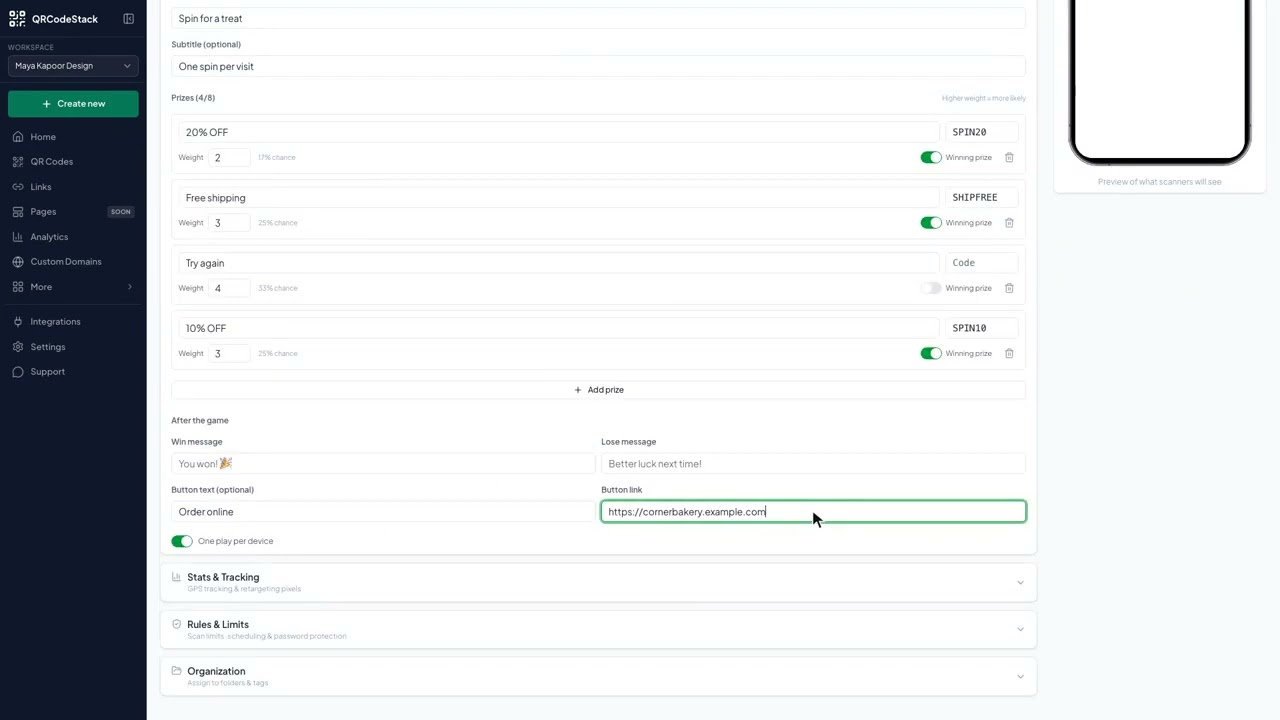
Click Create new, then Create a QR Code, click More on the Type step and choose Game. Keep Spinner Wheel or switch to Scratch Card, give it a Title, then set between two and eight prizes — each has a label, a code, a weight and a Winning prize switch. Game codes are dynamic only, so you can change the prizes later and the printed code keeps working.
Video transcript
Here is how to create a Game QR code. One scan opens a prize wheel, and the player sees the prize and code they win.
Use it on receipts and counter cards, on a card inside the box, or at a market stall where a prize wheel draws people in. Because the code is dynamic, you can change the prizes later and the printed code keeps working.
In the dashboard, click Create new, then Create a QR Code. Pick Game from the type grid and leave it on Dynamic. Give the code a name, keep Spinner Wheel selected, then type the game title, the subtitle, the button text, and the button link. Choose a theme, then Download.
Three things matter. First, the game type and the title. Spinner wheel or scratch card. Second, the prizes. Each has a label, a code, and a weight. Third, the after game screen. A win message, a lose message, and a button.
Try it on the seven-day free trial. No credit card, five dynamic QR codes. Link in the description.
When to use a Game QR code
- Receipts and counter cards. A spin at the till turns a purchase into a reason to come back.
- Packaging inserts. A card in the box with a game on it gets scanned more than a plain voucher.
- Market stalls and event booths. A prize wheel on a phone draws a crowd without any hardware.
For a plain discount with no game attached, use the Coupon type instead. Every QR code type lists the alternatives.
Steps in the dashboard
- Open the wizard. In the dashboard, click Create new, then Create a QR Code.
- Pick the type. On the Type step the grid shows the first 15 types, so click More to show the rest and choose Game. This type is dynamic only, so the Dynamic tab is already selected and Static is unavailable.
- Fill in the content. Click Next →. The first field is QR Code Name — it is optional and only for your own list. Then, under Basic Information:
Field What it does Game Spinner Wheel (spin to win) or Scratch Card (scratch to reveal). Title and Subtitle (optional) The text above the game. Prize label and code The label shows on the wheel; the code is what the player brings back to you. Weight Higher weight means more likely. The form shows each prize's chance as a percentage. Winning prize Turn it off for a losing segment such as Try again. Win message / Lose message What the player reads after the game ends. Button text and Button link Optional. Sends the player on to your shop. You need at least two prizes and can add up to eight. One play per device is on by default.
- Design and download. Click Next → to reach QR Design, pick a theme or set your own colours, then click Download ✓. The code is saved to My QR Codes at the same time.
After you download
Edit the code to change prizes, weights or messages at any time; the printed code is unaffected. Scans are recorded, so Full analytics shows how many people played and where from.
Plays themselves are not stored. The prize code shown on the player's screen is the only record, so make the codes easy to redeem at the till.
Common problems
Everybody wins
Add a segment with Winning prize switched off, and raise its Weight until the percentage next to it matches the odds you want.
A player can play twice
One play per device is remembered in the player's own browser, so clearing browsing data or switching phone lets them play again. Treat it as friction, not a lock.
Prize names are cut off on the wheel
Long labels are shrunk to fit the segment. Keep them to a few words, such as 20% OFF or Free coffee.
Frequently asked questions
Can I change the prizes after printing?
Yes. Edit the code, change the prizes, and every printed code shows the new wheel.
How many prizes can I add?
Between two and eight.
Does a player need an app?
No. The game runs in the phone's browser.
Can I see who won what?
No. Plays are not recorded; only scans appear in analytics.
Related articles
How do I create my first dynamic QR code?
Click Create new, pick a type, leave the toggle on Dynamic, fill in the content, style it, then click Download. The code is saved with its redirect built in.
How do I edit a QR code's destination after printing?
Open the code, click Edit, change the destination on the Content step and click Update. The printed pattern keeps working. Static codes cannot be edited.
Can I download my QR code as SVG, PDF or another vector format?
Yes. Open the code, click Download, and pick SVG in the Save as... dialog. JPEG, PNG and PDF are there too. Paid plans and the free trial get all four.
How do I create a Coupon QR code?
Choose Coupon, add the brand, headline, offer badge and discount code, then Download. Scanners get a coupon page with a Copy Code button.
How do I read my QR code scan analytics?
Open Analytics in the sidebar, pick a date range, and read Total Scans, Unique Visitors, Avg Scans/Day and Active Devices. Only dynamic codes report scans.
Still stuck?
Email support@qrcodestack.com with the email on your account and, if it is about one code, its name or short link. A person replies within one business day, usually sooner.