
How do I create a Payment QR code?
Updated September 14, 2026 · 2 min read
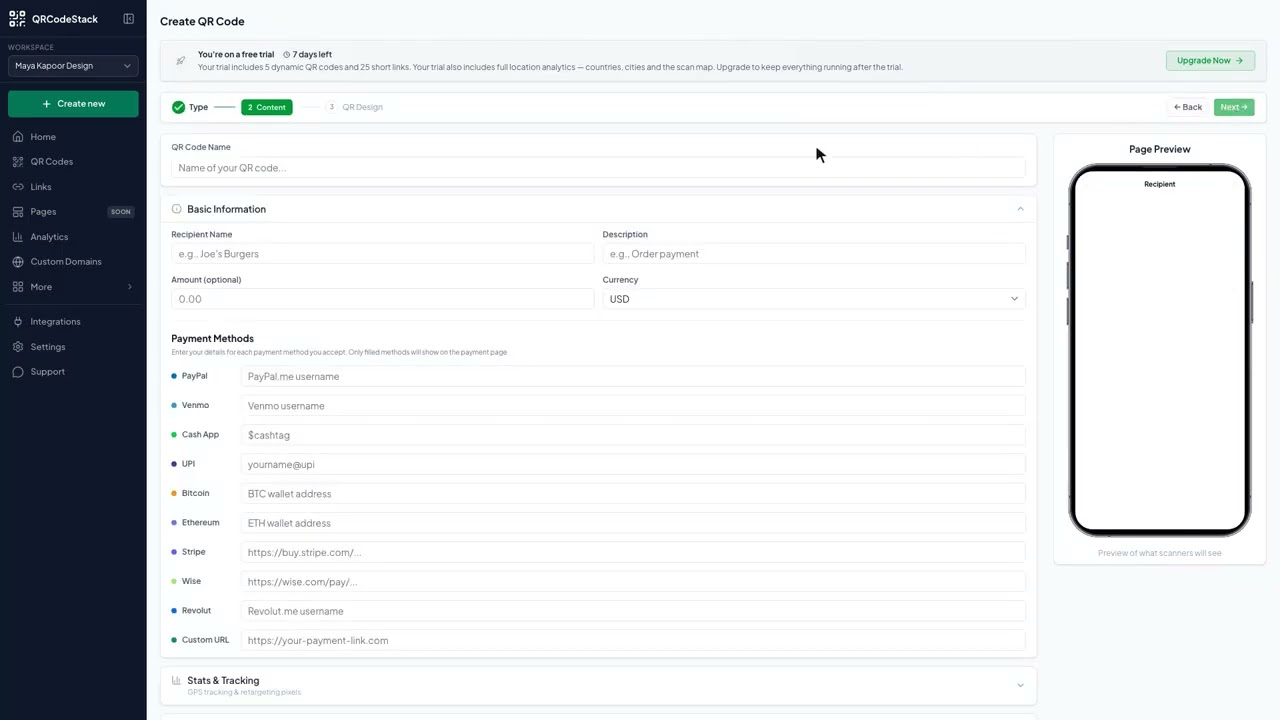
Open Create new → Create a QR Code, click More under the type grid and pick the Payment tile. Type a Recipient Name, fill in the payment methods you accept, then design the code and click Download ✓. One scan opens a page listing those methods with the details ready to copy or tap. We are not a payment processor — the money moves between the customer's app and yours.
Video transcript
Here is how to create a Payment QR code. One scan shows the ways a customer can pay you, with the details ready to copy.
Use it on a card by the till, on a market stall, at the bottom of an invoice, or on a tip jar. Because the code is dynamic, you can add or remove a payment method later and the printed code keeps working.
In the dashboard, click Create new, then Create a QR Code. Click More, pick Payment and leave it on Dynamic. Give the code a name, type the recipient name and a description, then fill in the payment methods you accept. Choose a theme, then Download. The code is saved and ready to print.
Three fields matter. First, the recipient name. Customers see it at the top of the page. Second, the payment methods. Fill in only the ones you accept. Empty ones stay hidden. Third, the amount. Set it for an invoice, or leave it open for tips.
Try it on the seven-day free trial. No credit card, five dynamic QR codes. Link in the description.
When to use a Payment QR code
- Shop counters and market stalls. A card by the till for customers who want to pay from their phone.
- Invoices and delivery notes. Print it at the bottom so the payment details are one scan away.
- Tip jars and donation boxes. Add or remove a method later and the printed code keeps working.
Payment codes are dynamic only. The page is hosted, so the methods and the amount stay editable after the card is printed.
Steps in the dashboard
- Start the wizard. Click Create new, then Create a QR Code.
- Pick the type. On the Type step click More and choose Payment. The toggle stays on Dynamic.
- Recipient Name. The name the customer sees at the top of the payment page — your shop or your own name.
- Description. A short line such as "Counter order" or "Invoice 2026-118".
- Amount (optional) and Currency. Set a fixed amount for an invoice, or leave it blank for tips and open-ended payments. Currency defaults to USD.
- Payment Methods. One row each for PayPal, Venmo, Cash App, UPI, Bitcoin, Ethereum, Stripe, Wise, Revolut and a Custom URL. Fill in only the ones you accept — the form says "Only filled methods will show on the payment page", so empty rows stay hidden.
- Design and download. Click Next →, choose a theme on the QR Design step, then Download ✓ and pick a format in Save as....
See types of QR codes for the rest of the grid.
After you download
Open the code and click Edit to add a method, remove one, or change the amount. Nothing on the printed card changes, which is what makes this worth using instead of printing a handle directly.
Scans are recorded — time, device, operating system, browser, referrer and country — and shown under Full analytics. Those are scans, not payments: we never see whether a transfer happened, so reconcile takings in the payment apps themselves.
For the wider picture of how scan-to-pay works, see the QR code payment systems guide.
Common problems
A method is missing from the page
Its field was left blank, or the value was cleared. Open the code, click Edit and check that row on the Content step.
The handle opens the wrong account
Most rows want a username, not a full URL — a PayPal.me username, a Venmo username, a $cashtag, a UPI ID. Stripe, Wise and Custom URL are the ones that take a full https:// link.
The amount does not carry into the payment app
Not every app accepts a pre-filled amount from a link. Print the amount on the invoice as well, and tell the customer to check it before confirming.
Check the live page after creating the code and send yourself a small test payment. A mistyped handle or wallet address sends money to someone else.
Frequently asked questions
Do you take a fee or hold the money?
No. The page shows the payment details you entered; the transfer happens between the customer's app and your account. We never touch the funds and charge nothing on them.
How many methods can I show?
Up to ten: PayPal, Venmo, Cash App, UPI, Bitcoin, Ethereum, Stripe, Wise, Revolut and one custom URL. Only the rows you fill in appear.
Can I change the amount after printing?
Yes. Open the code, click Edit and save. The printed pattern is unchanged.
Do I see who paid?
No. Analytics record the scan — time, device, browser, country — not the transaction. Payment records live in each payment app.
Related articles
How do I create my first dynamic QR code?
Click Create new, pick a type, leave the toggle on Dynamic, fill in the content, style it, then click Download. The code is saved with its redirect built in.
How do I create a Crypto QR code?
Pick Crypto in the type grid, choose the coin and paste your wallet address, then download. One scan shows the address with a Copy Address button.
How do I edit a QR code's destination after printing?
Open the code, click Edit, change the destination on the Content step and click Update. The printed pattern keeps working. Static codes cannot be edited.
How do I create a Product QR code?
Pick Product in the wizard, enter the product name, brand, description and Buy / Shop URL, then download. Scanners open a product page you can edit later.
How do I read my QR code scan analytics?
Open Analytics in the sidebar, pick a date range, and read Total Scans, Unique Visitors, Avg Scans/Day and Active Devices. Only dynamic codes report scans.
Still stuck?
Email support@qrcodestack.com with the email on your account and, if it is about one code, its name or short link. A person replies within one business day, usually sooner.