
How do I create an Event QR code?
Updated September 14, 2026 · 2 min read
Click Create new, then Create a QR Code, click More on the Type step and choose Event. Event Title is the only required field; add CTA Button Text and CTA URL for tickets, then the dates and the Location, and download on the QR Design step. Event codes are dynamic only, and the page they open carries add-to-calendar buttons and a link into maps, so guests can save the date and find the venue.
Video transcript
Here is how to create an Event QR code. One scan opens the event page with the title, the venue, and a ticket button.
Use it on posters and flyers, on invitations and tickets, and on signage at the venue on the night. Because the code is dynamic, you can change the venue or the ticket link later and the printed code keeps working.
In the dashboard, click Create new, then Create a QR Code. Pick Event from the type grid and leave it on Dynamic. Give the code a name, then type the event title, the button text, the button URL, and the venue address. Choose a theme, then Download. The code is saved and ready to print.
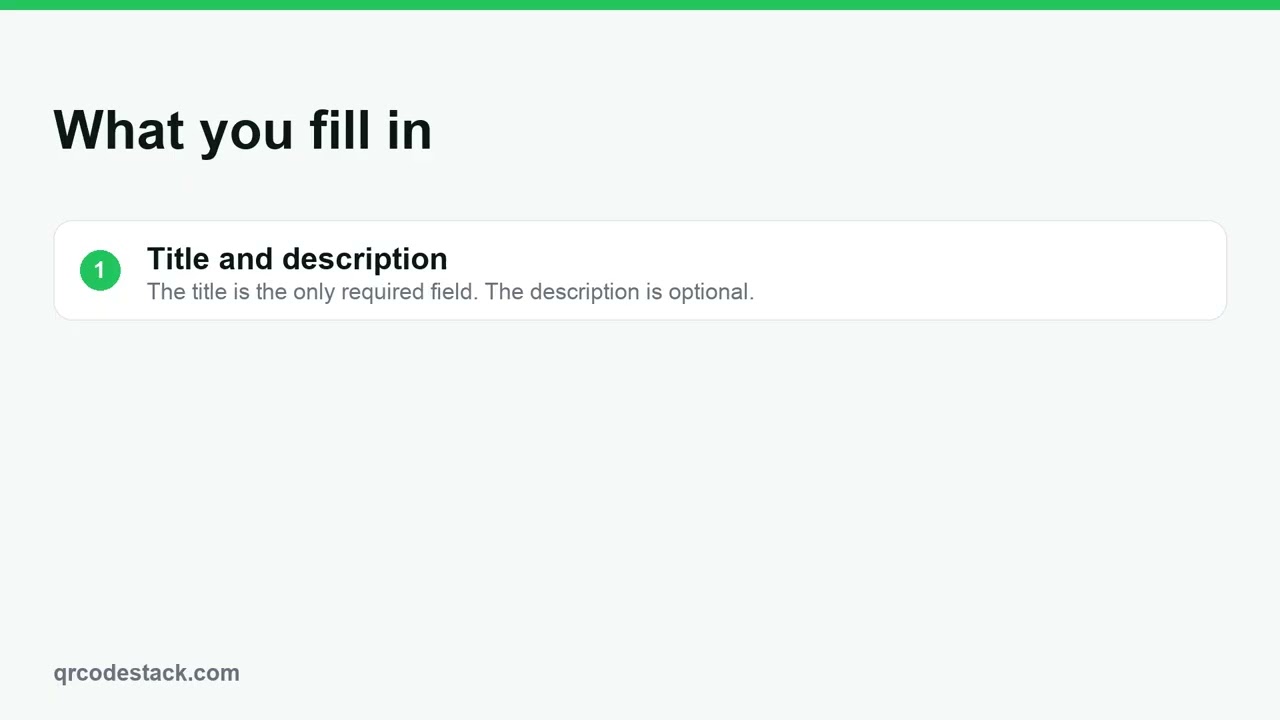
Three things matter. First, the event title. It is the only field you must fill. Second, the button. Give it a label and the URL for tickets or bookings. Third, the venue address. Dates, a map link and organizer details are optional.
Try it on the seven-day free trial. No credit card, five dynamic QR codes. Link in the description.
When to use an Event QR code
- Posters and flyers. One code carries the details the poster has no room for.
- Invitations and tickets. Guests scan the invite and land on the event page with the address and the button.
- Venue signage on the night. At the gate or the bar, the same code shows what is on and where.
The event QR code generator page runs the same wizard if you want to build one before signing in.
Steps in the dashboard
- Open the wizard. In the dashboard, click Create new, then Create a QR Code.
- Pick the type. On the Type step the grid shows the first 15 types, so click More to show the rest and choose Event. This type is dynamic only, so the Dynamic tab is already selected and Static is unavailable.
- Fill in the content. Click Next →. The first field is QR Code Name — it is optional and only for your own list. Then, under Basic Information:
Field What it does Event Title Required. The heading on the page. Description (optional) A paragraph under the details. CTA Button Text and CTA URL The main button, for example Get Tickets or RSVP. Start Date & Time / End Date & Time Date pickers. They also fill the calendar buttons. Location The address shown on the page. Google Maps URL (optional) Overrides the address for the Open in Maps button. A cover image and the organiser's Name, Email, Phone and Website are optional.
- Design and download. Click Next → to reach QR Design, pick a theme or set your own colours, then click Download ✓. The code is saved to My QR Codes at the same time.
What scanners see, and what you can change
The scan opens a hosted event page: the title, the dates, the venue, your button, and a row of add-to-calendar buttons for Google Calendar, Outlook and Apple / ICS. When a location or maps link is set, an Open in Maps button appears too.
Because the code is dynamic, you can move the venue, change the date or swap the ticket link from Edit at any time, and the printed code keeps working. Scans are recorded, so you can see how many people scanned each poster run.
Common problems
The calendar buttons add the wrong time
Set both Start Date & Time and End Date & Time. With no end time we use the start time for both, which creates a zero-length entry.
Open in Maps goes to the wrong place
A written address is matched by search, which can miss. Paste a link into Google Maps URL (optional) instead — it wins over the address.
The ticket button is missing
It needs both CTA Button Text and CTA URL. With only one of the two set, no button is drawn.
Frequently asked questions
Can I reuse the code for next year's event?
Yes. Edit the title, dates and ticket link, and the same printed code shows the new event.
Is Event available as a static code?
No. Event is dynamic only, because the event page has to be hosted.
Do guests need an app to add the date?
No. The calendar buttons open Google Calendar or Outlook in the browser, or download a standard .ics file.
Can I cap how many people can scan it?
Yes, on Pro and Business. See scheduling and scan limits.
Related articles
How do I create my first dynamic QR code?
Click Create new, pick a type, leave the toggle on Dynamic, fill in the content, style it, then click Download. The code is saved with its redirect built in.
How do I edit a QR code's destination after printing?
Open the code, click Edit, change the destination on the Content step and click Update. The printed pattern keeps working. Static codes cannot be edited.
Can I download my QR code as SVG, PDF or another vector format?
Yes. Open the code, click Download, and pick SVG in the Save as... dialog. JPEG, PNG and PDF are there too. Paid plans and the free trial get all four.
How do I schedule, pause, or cap the number of scans on a QR code?
Scan Limit and Date Schedule sit in Rules & Limits on the Content step and need Pro or Business. To pause a code on any plan, archive it.
How do I create a Google Maps location QR code?
Pick Maps in the wizard, paste the Google Maps share link or type the address, then download. One scan opens the location with directions a tap away.
Still stuck?
Email support@qrcodestack.com with the email on your account and, if it is about one code, its name or short link. A person replies within one business day, usually sooner.