
How do I create a PDF QR code?
Updated September 14, 2026 · 2 min read
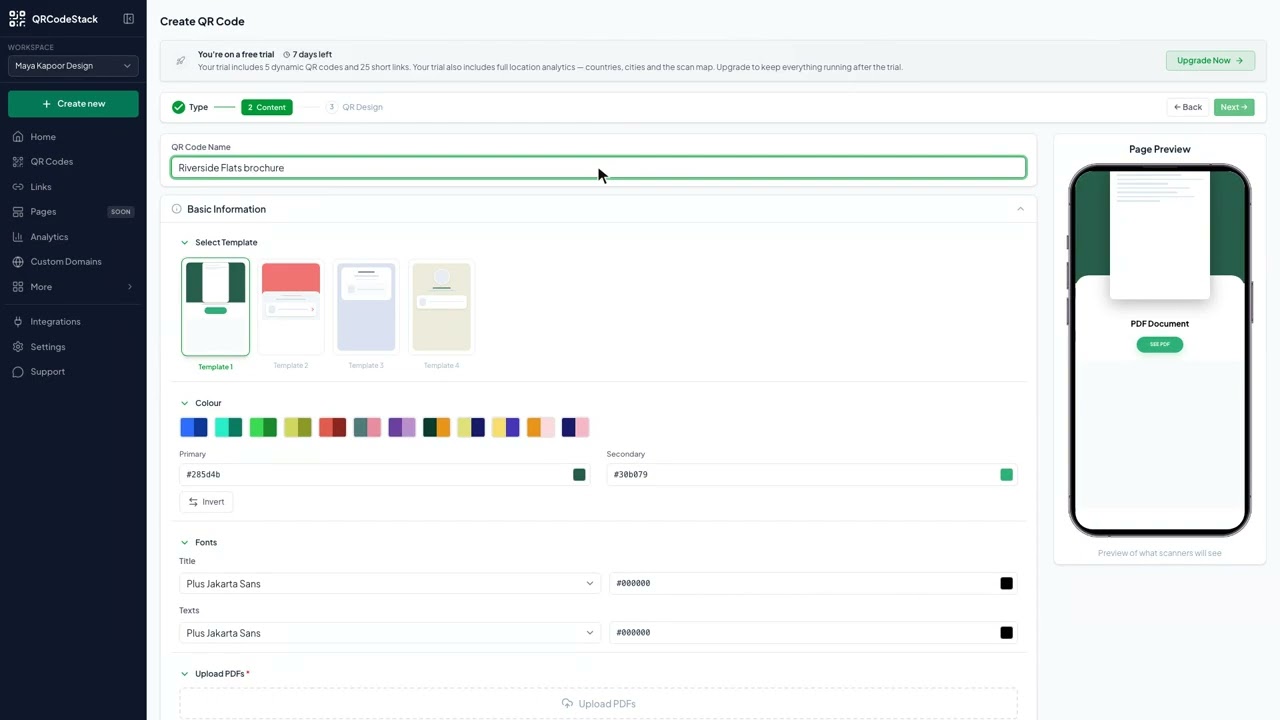
Click Create new, then Create a QR Code, and choose PDF on the Type step. Upload the document under Upload PDFs, fill in Company, PDF Title and the button text, style the code and click Download ✓. PDF is a dynamic-only type: scanners open a hosted page with your title and a button that opens the document, and you can replace the file later without reprinting the code.
Video transcript
Here is how to create a PDF QR code. Scanners get a page with your document title and a button that opens the PDF.
Use it on a property card, on packaging with a short printed guide and a long manual, or on a table card that opens the price list. Because the code is dynamic, you can replace the PDF later and the printed code keeps working.
In the dashboard, click Create new, then Create a QR Code. Pick PDF from the type grid and leave it on Dynamic. Give the code a name, upload the PDF, then add the company name, document title and button text. Choose a theme, then Download. The code is saved and ready to print.
First, upload the PDF. That is the only file the form needs. Second, add the company name and the document title. They appear above the button. Third, set the button text. Keep it short, like Open brochure.
Try it on the seven-day free trial. No credit card, five dynamic QR codes. Link in the description.
When to use a PDF QR code
- Property and product brochures. Hand out a small card; the full brochure lives behind the code.
- Manuals on packaging. The printed guide can be short; the code opens the complete manual.
- Menus and price lists. Replace the PDF when prices change; the code on the table stays.
Steps in the dashboard
- Open the wizard. In the dashboard sidebar click Create new, then Create a QR Code.
- Pick the type. On the Type step choose PDF — it is in the first fifteen tiles, so you will not need More. PDF is dynamic only, so the Static tab stays disabled.
- Upload the document. On the Content step drop your file into Upload PDFs. This is required — the wizard will not move on without it. You can add more than one file.
- Describe the page. Under Page Details fill in Company, PDF Title, an optional Description and Website. They appear above the button, so scanners know what they are about to open. Set the button text — keep it to a couple of words, such as "Open brochure".
- Style it. On the QR Design step pick one of the ten Themes, or set your own dots, colours, frame and logo. Keep strong contrast between Dots Color and Background.
- Save and download. Click Download ✓ to create the code. For the image file, open it from My QR Codes, click Download, and pick JPEG, PNG, SVG or PDF in the Save as... dialog.
After you download
The code is now in My QR Codes, where you can rename it, tag it, file it in a folder or copy its short URL.
- Change the content later. Click Edit on the code, change the fields, then click Update ✓. The printed pattern never changes, so nothing has to be reprinted.
- Scans are counted. A dynamic scan passes through us, so the code records device, operating system, browser, referrer and country. Click Full analytics to read them. Cities and the scan map come with the free trial and the Business plan.
- Swap the file. Edit the code and upload a new PDF when the document changes. Scanners always get the current version.
Common problems
The Next button does nothing
A PDF is required. If the upload is still running you get "Please wait for the upload to finish"; if no file has been added you get "Fill in your PDF details to continue".
The file is rejected as too large
Uploads are capped by plan: 5 MB on the free trial and Starter, 10 MB on Pro and 20 MB on Business. Compress the PDF or upgrade.
The button has no label
The button text field starts empty with a VIEW PDF placeholder. A placeholder is not a value — type the words you want.
Frequently asked questions
Can a PDF QR code be static?
No. PDF is dynamic only, because the document is hosted and the code points at the page that opens it.
Can I attach more than one PDF?
Yes. Upload PDFs accepts several files and the list can be edited afterwards.
Can I replace the PDF without a new code?
Yes. Edit the code, upload the new file and click Update ✓. The printed pattern is untouched.
Do I see who opened the document?
You see scan data — device, operating system, browser, referrer and country — not the identity of the reader.
Related articles
How do I create my first dynamic QR code?
Click Create new, pick a type, leave the toggle on Dynamic, fill in the content, style it, then click Download. The code is saved with its redirect built in.
How do I edit a QR code's destination after printing?
Open the code, click Edit, change the destination on the Content step and click Update. The printed pattern keeps working. Static codes cannot be edited.
Can I download my QR code as SVG, PDF or another vector format?
Yes. Open the code, click Download, and pick SVG in the Save as... dialog. JPEG, PNG and PDF are there too. Paid plans and the free trial get all four.
How do I read my QR code scan analytics?
Open Analytics in the sidebar, pick a date range, and read Total Scans, Unique Visitors, Avg Scans/Day and Active Devices. Only dynamic codes report scans.
Still stuck?
Email support@qrcodestack.com with the email on your account and, if it is about one code, its name or short link. A person replies within one business day, usually sooner.