
How do I create a Crypto QR code?
Updated September 14, 2026 · 2 min read
Open Create new → Create a QR Code, click More under the type grid and pick the Crypto tile. Choose the Cryptocurrency, paste your Wallet Address, then design the code and click Download ✓. A dynamic Crypto code opens a page showing the currency, the address and an optional amount, with a Copy Address button so nobody retypes a long string by hand.
Video transcript
Here is how to create a Crypto QR code. One scan shows your wallet address with a copy button, so nobody retypes it by hand.
Use it on a tip card by the till, on a market stall sign, on a printed invoice, or on a creator page. Because the code is dynamic, you can change the coin or the address later and the printed code keeps working.
In the dashboard, click Create new, then Create a QR Code. Click More, pick Crypto from the type grid and leave it on Dynamic. Give the code a name, choose the cryptocurrency, then paste the wallet address. Choose a theme for the code itself, then Download. The code is saved and ready to print.
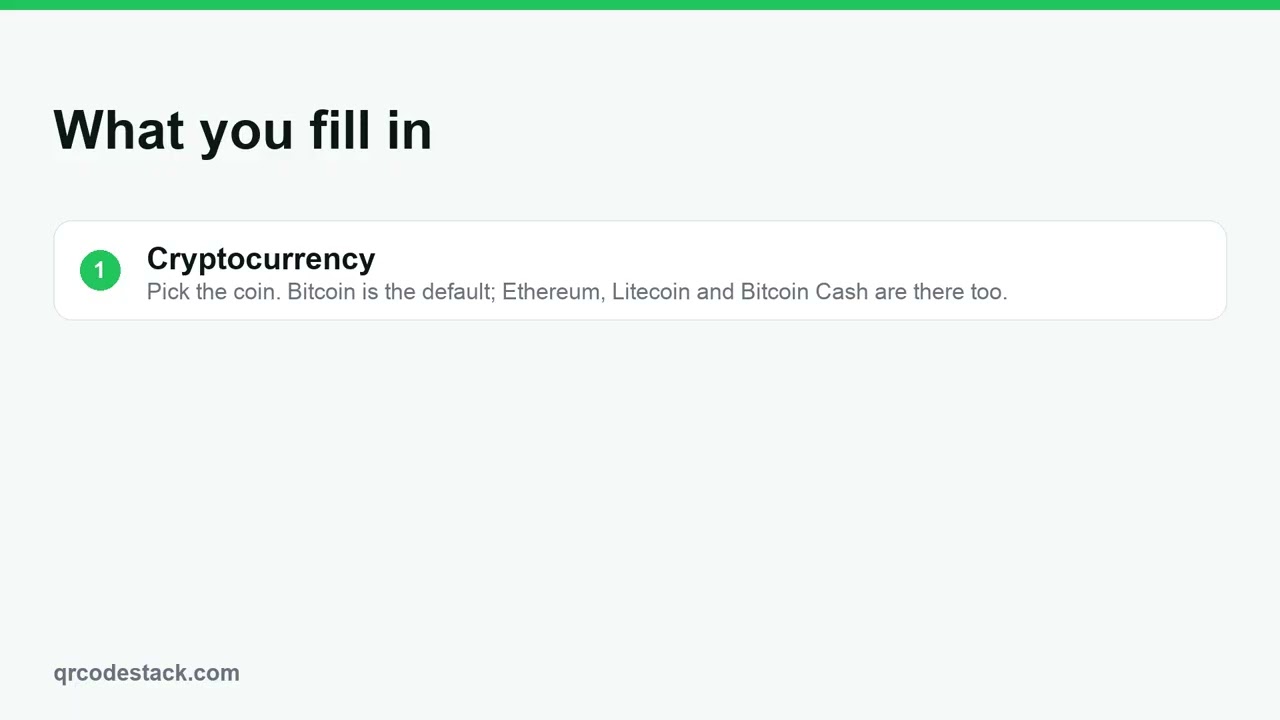
Three fields matter. First, the cryptocurrency. Pick the coin your wallet uses. Second, the wallet address. Paste it from your wallet app and never type it by hand. Third, the amount. Leave it blank for tips, or set it for a fixed invoice.
Try it on the seven-day free trial. No credit card, five dynamic QR codes. Link in the description.
When to use a Crypto QR code
- Tip jars and donation cards. A card by the till or a sign at a stall for people who want to tip.
- Invoices and quotes. Print it at the bottom of an invoice next to the bank details.
- Creator pages and merch. Change the coin or the address later and the printed code keeps working.
Crypto codes can be Dynamic or Static. Dynamic shows the hosted page with the copy button, and can be edited and measured. Static encodes the wallet address as plain text, so a wallet app may read it directly — but it can never be changed and records no scans.
Steps in the dashboard
- Start the wizard. Click Create new, then Create a QR Code.
- Pick the type. On the Type step click More, choose Crypto ("Share a crypto address") and leave the toggle on Dynamic.
- Name it. On the Content step type a QR Code Name such as "Tips wallet".
- Cryptocurrency. Pick the coin. Bitcoin (BTC) is the default; Ethereum (ETH), Litecoin (LTC) and Bitcoin Cash (BCH) are the other options.
- Wallet Address. Paste it from your wallet app. Never type an address by hand — one wrong character sends the funds nowhere recoverable.
- Amount (optional). Leave it blank for tips, or set a figure for a fixed invoice.
- Design and download. Click Next →, choose a theme on the QR Design step, then Download ✓ and pick a format in Save as....
For the wider list of tiles see types of QR codes.
After you download
The page lives at a short link we own, so you can open the code and click Edit to change the coin, the address or the amount without reprinting the card. That matters more here than for most types, because wallets get rotated.
Scans on dynamic codes are recorded — time, device, operating system, browser, referrer and country — and shown under Full analytics. We are not a payment processor and never touch the funds: the transfer happens entirely between the scanner's wallet and yours.
Check the address on the live page after you create the code, then send a small test transfer before you print anything. A wrong address cannot be reversed.
Common problems
The wallet app does not open automatically
The page is a web page, not a wallet link. The scanner taps Copy Address and pastes it into their wallet — which is also the safer flow, because they see the address before sending.
The address shown is wrong
It was pasted with a leading or trailing space, or copied from a truncated display. Open the code, click Edit and paste again straight from the wallet app.
The copy button does nothing
Some in-app browsers block clipboard access. The full address is printed on the page in monospace, so it can still be selected by hand.
Frequently asked questions
Which coins can I choose?
Bitcoin (BTC), Ethereum (ETH), Litecoin (LTC) and Bitcoin Cash (BCH). The page shows the coin name next to the address so the sender knows which network to use.
Do you process the payment?
No. The code shows your address; the transfer goes wallet to wallet. We never hold, route or see the funds.
Can I change the address after printing?
Yes on a dynamic code — open it, click Edit, paste the new address and save. Static codes cannot be changed.
Can I accept several payment methods on one code?
Yes — use the Payment type, which shows a page listing every method you fill in, including Bitcoin and Ethereum addresses.
Related articles
How do I create my first dynamic QR code?
Click Create new, pick a type, leave the toggle on Dynamic, fill in the content, style it, then click Download. The code is saved with its redirect built in.
How do I create a Payment QR code?
Pick Payment in the type grid, enter the recipient name and fill in only the methods you accept, then download. One scan shows the ways to pay you.
How do I edit a QR code's destination after printing?
Open the code, click Edit, change the destination on the Content step and click Update. The printed pattern keeps working. Static codes cannot be edited.
How do I test a QR code before sending it to print?
Scan the exported file and then the printer's physical proof with at least two phones, check the destination on mobile, and check the margin and contrast.
Static vs dynamic QR codes in QRCodeStack: which should I choose?
Dynamic encodes a redirect, so it can be edited and tracked. Static embeds the content in the pattern: no edits, no analytics, and it needs a paid plan.
Still stuck?
Email support@qrcodestack.com with the email on your account and, if it is about one code, its name or short link. A person replies within one business day, usually sooner.