
How do I create a Google Form QR code?
Updated September 14, 2026 · 2 min read
Open Create new → Create a QR Code, click More under the type grid, and pick the Form tile. Paste your Google Form responder link into Google Form URL, style the code on the QR Design step, and click Download ✓. One scan opens the form on the scanner's phone, so people fill it in there instead of on paper.
Video transcript
Here is how to create a Form QR code. One scan opens your Google Form, ready to fill in on a phone instead of paper.
Use it wherever you would hand someone a paper form. Registration at the door, feedback after a session, or a booking request on a notice board. Because the code is dynamic, you can change the form later and the printed code keeps working.
In the dashboard, click Create new, then Create a QR Code. Click More, pick Form and leave it on Dynamic. Give the code a name and paste the Google Form link. Choose a theme for the code itself, then Download. The code is saved and ready to print.
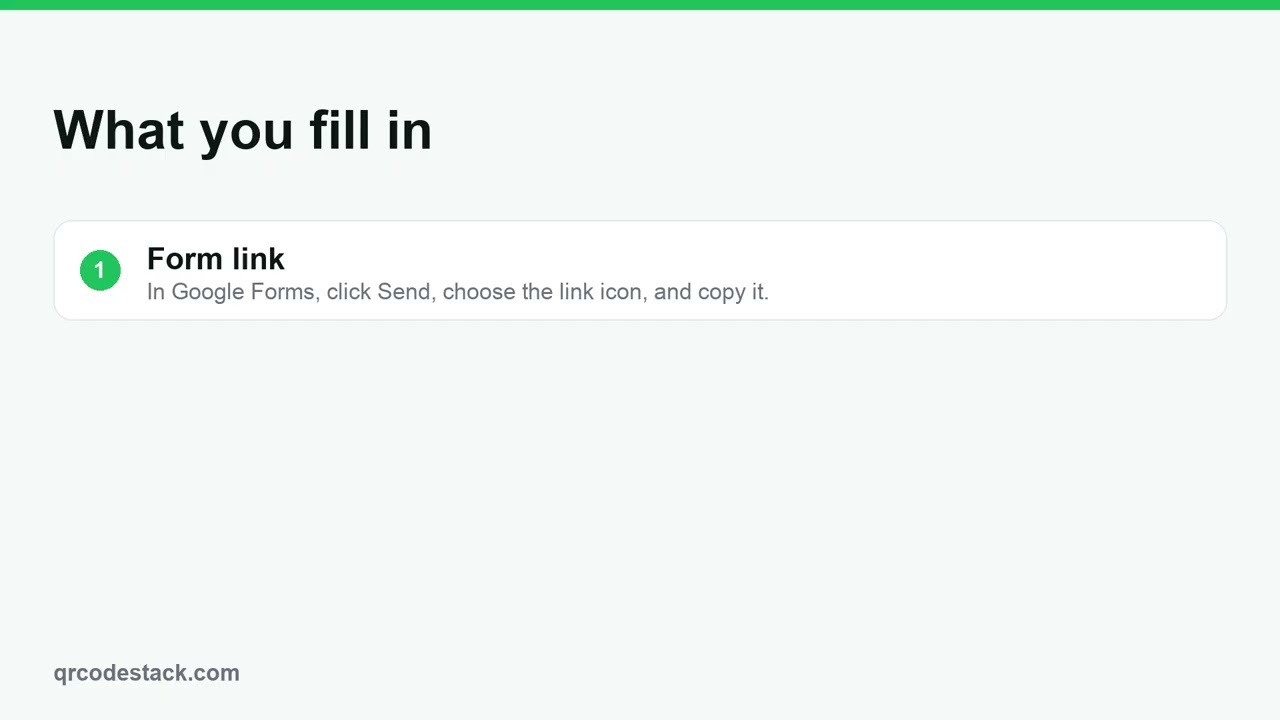
Three things matter. First, the form link. In Google Forms, click Send, choose the link icon, and copy it. Second, use the responder link. It ends in viewform, not the editing link. Third, test it. Scan the preview and send one test response.
Try it on the seven-day free trial. No credit card, five dynamic QR codes. Link in the description.
When to use a Form QR code
- Registration at the door. A code at the entrance replaces the clipboard and the typing afterwards.
- Feedback at the end of a session. Print it on the last slide or an exit card while opinions are fresh.
- Order and booking requests. On a notice board or a flyer, the form takes the request straight away.
Form codes can be Dynamic or Static. Dynamic is the default and the one to use: the printed pattern points at us, so you can change the form link later and record scans. A static code bakes the form URL into the pattern, which means no edits and no analytics.
Steps in the dashboard
- Start the wizard. Click Create new in the sidebar, then Create a QR Code.
- Pick the type. On the Type step the grid shows the first 15 tiles; click More and choose Form ("Open a Google Form"). Leave the toggle on Dynamic.
- Add the content. On the Content step, give it a QR Code Name such as "Hall booking form", then paste the link into Google Form URL.
- Copy the right link. In Google Forms click Send and choose the link icon. Use the responder link that ends in
/viewform, not the editing link from your browser address bar. - Design it. Click Next → to the QR Design step, pick a theme, and adjust colours, frame or logo if you want.
- Download. Click Download ✓, then choose a format in the Save as... dialog. The code is saved to My QR Codes at the same time.
For the longer walkthrough with Google Forms screenshots, see the Google Forms QR code generator page.
After you download
A dynamic Form code points at a short link we own, so the printed pattern never has to change. Open the code and click Edit to swap the form link — useful when this year's event form replaces last year's.
Every scan of a dynamic code is recorded: time, device, operating system, browser, referrer and country. Open the code and click Full analytics to read the numbers. Google Forms counts the responses; we count the scans, so the gap between the two tells you how many people opened the form and walked away.
Common problems
Scanners see "You need permission"
The form is restricted to your organisation, or you pasted the editing link. Copy the responder link from Send, and in the form's settings allow responses from anyone.
The form asks for a sign-in
Turn off "Limit to 1 response" and any email-collection requirement in Google Forms if you want people to answer without an account.
The code opens a blank page
Check the URL you pasted starts with https://. The wizard shows "Please enter a valid URL" if the field is malformed, but it cannot tell whether the form itself is published.
Submit one test response from your own phone before the print run. Testing before printing covers what else to check.
Frequently asked questions
Can I change the form after printing?
Yes, if the code is dynamic. Open it, click Edit, paste the new form link and save. The printed pattern keeps working. Static codes cannot be changed.
Do I see who answered the form?
No. Responses stay in Google Forms. We record the scan itself — time, device, browser, country — not anything the person typed.
Does the scanner need a Google account?
Only if your form requires one. Set the form to accept responses from anyone and no sign-in is needed.
Can I use a form link from another tool?
Yes. Any form URL works in this field, and the URL type handles the same job if you prefer it.
Related articles
How do I create my first dynamic QR code?
Click Create new, pick a type, leave the toggle on Dynamic, fill in the content, style it, then click Download. The code is saved with its redirect built in.
How do I edit a QR code's destination after printing?
Open the code, click Edit, change the destination on the Content step and click Update. The printed pattern keeps working. Static codes cannot be edited.
How do I create a Feedback QR code?
Pick Feedback in the wizard, fill in the business Name and the Title question, then download. Scanners rate you and leave a comment; responses land in Data Hub.
How do I test a QR code before sending it to print?
Scan the exported file and then the printer's physical proof with at least two phones, check the destination on mobile, and check the margin and contrast.
Static vs dynamic QR codes in QRCodeStack: which should I choose?
Dynamic encodes a redirect, so it can be edited and tracked. Static embeds the content in the pattern: no edits, no analytics, and it needs a paid plan.
Still stuck?
Email support@qrcodestack.com with the email on your account and, if it is about one code, its name or short link. A person replies within one business day, usually sooner.