
How do I create a Product QR code?
Updated September 14, 2026 · 2 min read
In the dashboard click Create new, then Create a QR Code, click More on the Type step and choose Product. Fill in Product Name, which is the only required field, plus Company / Brand, a short Description and the Buy / Shop URL, then download on the QR Design step. Product codes are dynamic only, so the scan opens a product page we host and you can rewrite every detail later without reprinting.
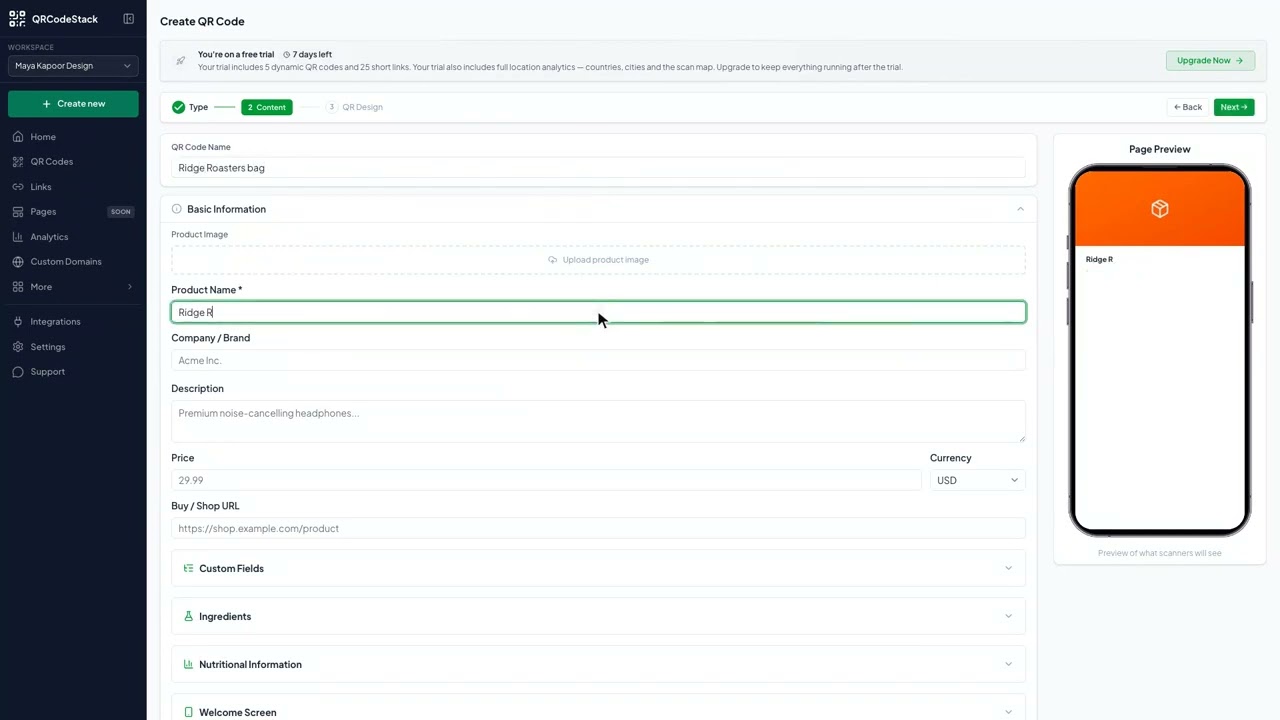
Video transcript
Here is how to create a Product QR code. One scan opens a page with the name, brand, description, and a button to your shop.
Use it on packaging and labels, on shelf tags and displays, and on samples you hand out at a trade show. Because the code is dynamic, you can update the description or the shop link later and the printed code keeps working.
In the dashboard, click Create new, then Create a QR Code. Pick Product from the type grid and leave it on Dynamic. Give the code a name, then type the product name, the brand, a short description, and the buy URL. Choose a theme, then Download. The code is saved and ready to print.
Three things matter. First, the product name and the brand. The name is the only field you must fill. Second, the description. Keep it short. Third, the buy URL. The button on the page opens it. Price, ingredients and extra fields are optional.
Try it on the seven-day free trial. No credit card, five dynamic QR codes. Link in the description.
When to use a Product QR code
- Packaging and labels. The bag or box carries the code; the page carries everything that does not fit on the label.
- Shelf tags and displays. Shoppers scan, read the details, and can buy online later.
- Samples and trade shows. Hand out a sample and the code brings people back to the product page.
If you need a GS1 Digital Link for retail scanning instead of a marketing page, use the GS1 type. For a full list of the types on offer, see every QR code type.
Steps in the dashboard
- Open the wizard. In the dashboard, click Create new, then Create a QR Code.
- Pick the type. On the Type step the grid shows the first 15 types, so click More to show the rest and choose Product. This type is dynamic only, so the Dynamic tab is already selected and Static is unavailable.
- Fill in the content. Click Next →. The first field is QR Code Name — it is optional and only for your own list. Then, under Basic Information:
Field What it does Product Name Required. The heading on the page. Company / Brand Shows above the name. Description A short paragraph under the name. Keep it short. Price and Currency Optional. Shown under the name when both are set. Buy / Shop URL Optional. Adds the button that opens your shop. Product Image Optional. Sits at the top of the page. Ingredient and attribute rows below the main fields are optional; leave them empty and they do not appear.
- Design and download. Click Next → to reach QR Design, pick a theme or set your own colours, then click Download ✓. The code is saved to My QR Codes at the same time.
After you download
Open the code from My QR Codes and click Edit to change the price, the description or the shop link. The printed pattern never changes, because it always points at the same address.
Scans are recorded, so the code's Full analytics view shows totals, devices, browsers and referrers. Read how to read your scan analytics for what each number means.
Common problems
There is no buy button on the page
The button only appears when Buy / Shop URL is filled in. Edit the code, add the full address including https://, and save.
The price shows the wrong symbol
Price and Currency are separate fields. Set Currency to the one you sell in; typing a symbol into the price field will not change it.
Static is greyed out
Product is a dynamic-only type, because the page has to be hosted somewhere. There is no static version of it.
Frequently asked questions
Can I change the shop link after printing?
Yes. Edit the code and change Buy / Shop URL. Every printed code starts using the new link straight away.
Is a price required?
No. Price and currency are optional, and the page simply leaves them out when they are empty.
Can I make a Product code static?
No. Product is dynamic only.
Does one code work for a whole product range?
One code shows one product page. Create a separate code per product, or use a List of Links code to group several.
Related articles
How do I create my first dynamic QR code?
Click Create new, pick a type, leave the toggle on Dynamic, fill in the content, style it, then click Download. The code is saved with its redirect built in.
How do I edit a QR code's destination after printing?
Open the code, click Edit, change the destination on the Content step and click Update. The printed pattern keeps working. Static codes cannot be edited.
Can I download my QR code as SVG, PDF or another vector format?
Yes. Open the code, click Download, and pick SVG in the Save as... dialog. JPEG, PNG and PDF are there too. Paid plans and the free trial get all four.
How do I create a GS1 Digital Link QR code?
Pick GS1 in the type grid, enter the product name and the GTIN under your barcode, add a batch if you need one, then design and download.
How do I create a product authentication QR code?
Pick Product Authentication in the type grid, enter the product name, model and batch, then download. One scan shows the record you entered.
Still stuck?
Email support@qrcodestack.com with the email on your account and, if it is about one code, its name or short link. A person replies within one business day, usually sooner.