
How do I create a Text QR code?
Updated September 14, 2026 · 2 min read
Click Create new, then Create a QR Code, and choose Text on the Type step. Type your message into Text Content, style the code on QR Design and click Download ✓. Text is a dynamic-only type: the scan opens a hosted card showing your message with a Copy Text button, and nothing has to be installed. Because it is dynamic you can rewrite the message later without reprinting.
Video transcript
Here is how to create a Text QR code. Scanners get your message as a clean page on their phone, with no app to install.
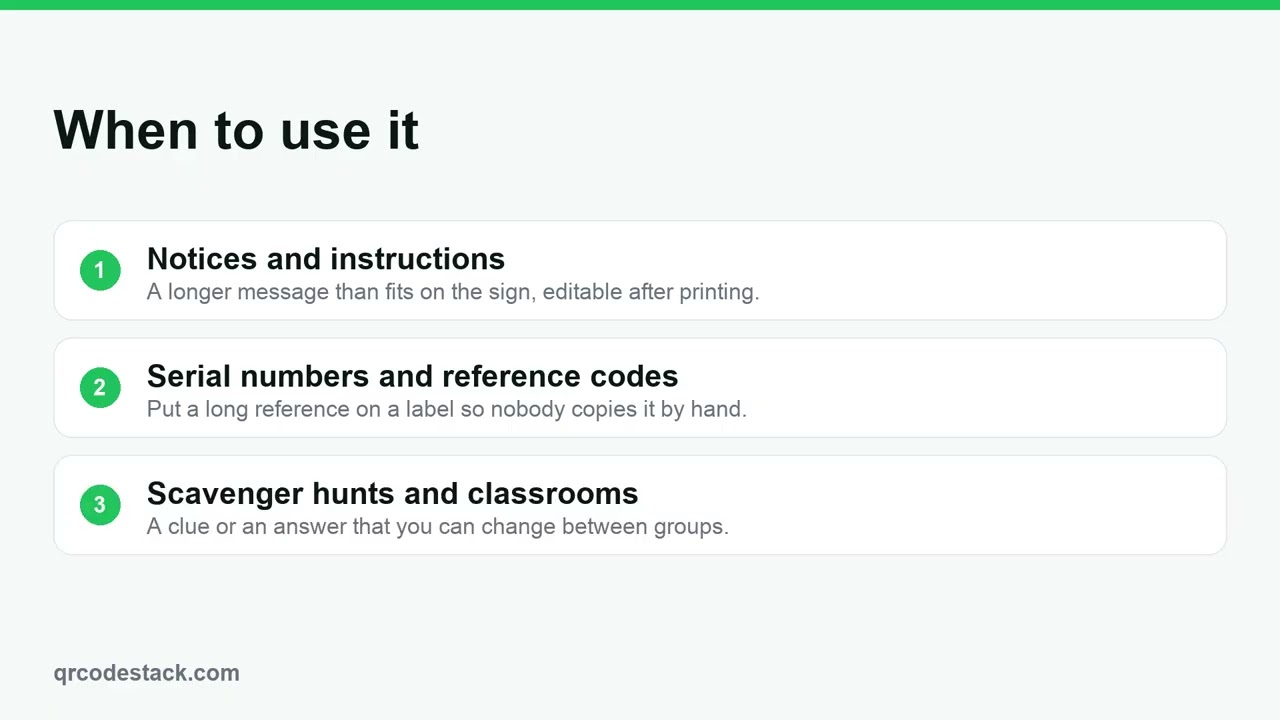
Use it on a notice with more words than the sign can hold, on a label with a long serial number, or as a scavenger hunt clue. Because the code is dynamic, you can change the message later and the printed code keeps working.
In the dashboard, click Create new, then Create a QR Code. Pick Text from the type grid and leave it on Dynamic. Give the code a name, then type your message in the text box. Choose a theme for the code itself, then Download. The code is saved and ready to print.
Only the message matters. First, type it in the text box. Keep it short enough to read on a phone. Second, name the code so you can find it in the dashboard. Third, come back and edit the message whenever it changes.
Try it on the seven-day free trial. No credit card, five dynamic QR codes. Link in the description.
When to use a Text QR code
- Notices and instructions. A longer message than fits on the sign, still editable after printing.
- Serial numbers and reference codes. Put a long reference on a label so nobody copies it out by hand.
- Scavenger hunts and classrooms. A clue or an answer that you can change between groups.
Steps in the dashboard
- Open the wizard. In the dashboard sidebar click Create new, then Create a QR Code.
- Pick the type. On the Type step choose Text — it is in the first fifteen tiles, so you will not need More. Text is dynamic only, so the Static tab stays disabled.
- Write the message. On the Content step type into Text Content. It is the only field on the form and it is required. Keep it short enough to read comfortably on a phone.
- Name the code. Fill in QR Code Name at the top. It is a label for your dashboard; scanners never see it.
- Style it. On the QR Design step pick one of the ten Themes, or set your own dots, colours, frame and logo. Keep strong contrast between Dots Color and Background.
- Save and download. Click Download ✓ to create the code. For the image file, open it from My QR Codes, click Download, and pick JPEG, PNG, SVG or PDF in the Save as... dialog.
After you download
The code is now in My QR Codes, where you can rename it, tag it, file it in a folder or copy its short URL.
- Change the content later. Click Edit on the code, change the fields, then click Update ✓. The printed pattern never changes, so nothing has to be reprinted.
- Scans are counted. A dynamic scan passes through us, so the code records device, operating system, browser, referrer and country. Click Full analytics to read them. Cities and the scan map come with the free trial and the Business plan.
- Rewrite the message. Edit the code whenever the notice changes. The sign on the wall stays where it is.
Common problems
The wizard will not continue
Text Content is required. Type something, then click Next →.
The message is long and the code looks dense
A dynamic code encodes a short redirect URL, not your message, so length does not affect the pattern. If the pattern still looks busy, open the Advanced section on the QR Design step and leave Pattern Density on Auto.
You wanted the text embedded in the code itself
Text is dynamic only here, so the scan always goes through a hosted page. That is what makes the message editable, and what makes the scans countable.
Frequently asked questions
Can a text QR code be static?
No. Text is offered as a dynamic type only.
Is there a length limit?
Write what you need. The pattern does not grow with the message, because the code encodes a short redirect URL.
Can the reader copy the text?
Yes. The page has a Copy Text button.
Related articles
How do I create my first dynamic QR code?
Click Create new, pick a type, leave the toggle on Dynamic, fill in the content, style it, then click Download. The code is saved with its redirect built in.
How do I edit a QR code's destination after printing?
Open the code, click Edit, change the destination on the Content step and click Update. The printed pattern keeps working. Static codes cannot be edited.
Can I download my QR code as SVG, PDF or another vector format?
Yes. Open the code, click Download, and pick SVG in the Save as... dialog. JPEG, PNG and PDF are there too. Paid plans and the free trial get all four.
Static vs dynamic QR codes in QRCodeStack: which should I choose?
Dynamic encodes a redirect, so it can be edited and tracked. Static embeds the content in the pattern: no edits, no analytics, and it needs a paid plan.
Still stuck?
Email support@qrcodestack.com with the email on your account and, if it is about one code, its name or short link. A person replies within one business day, usually sooner.