
How do I track QR code scans in Google Analytics 4?
Updated September 14, 2026 · 3 min read · Pro and Business
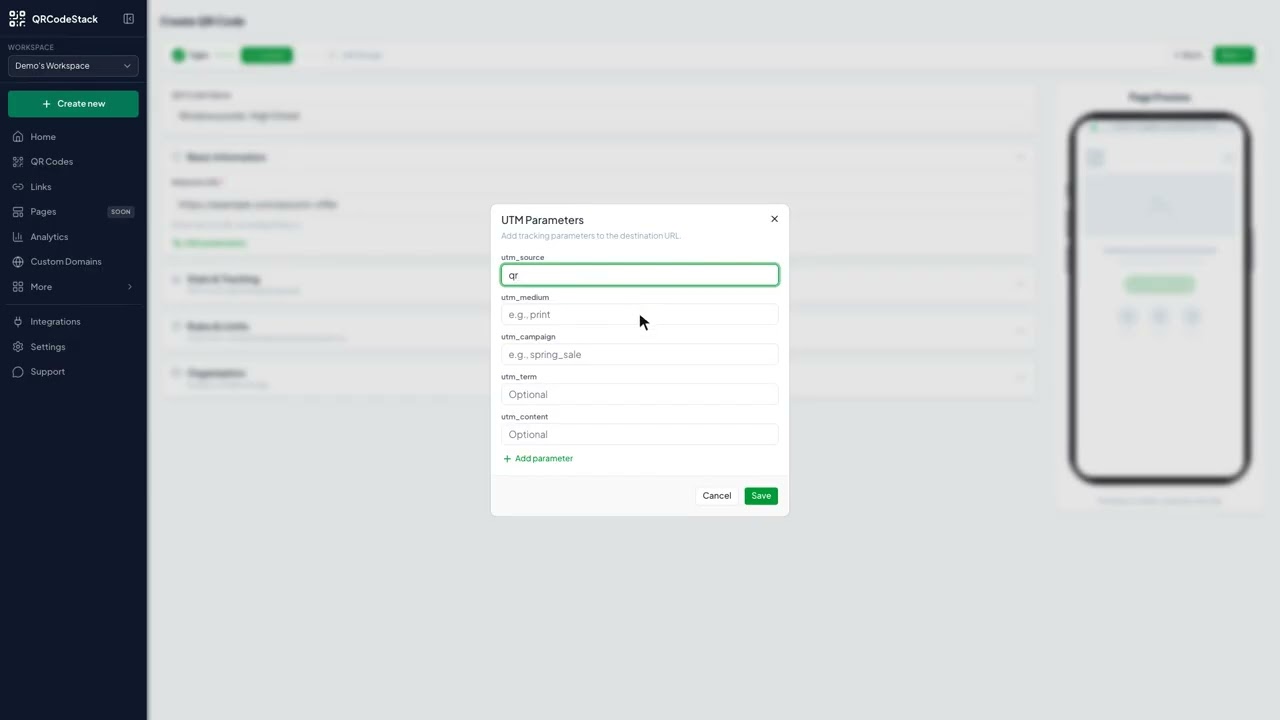
Add UTM parameters to the code's destination. In the QR wizard, click Edit parameters under the URL field, fill in utm_source, utm_medium and utm_campaign, and save. Those parameters are appended to the destination on every scan, so Google Analytics 4 files the session under your campaign instead of Direct. The UTM builder needs a Pro or Business plan and a dynamic code, and it is offered on the 13 types that redirect to a page worth measuring.
In this video
Video transcript
Here is how to track QR code scans in Google Analytics. Add UTM parameters to the code's destination, and GA4 attributes each session to a source, medium and campaign.
A scan opens the link with no referring site, so GA4 files it under Direct. UTM parameters fix that. They tell GA4 the source, medium and campaign. The builder is on Pro and above. Our own analytics counts scans either way.
In the dashboard, click Create new, then Create a QR Code. Pick URL and keep it Dynamic. Name the code after its placement, and paste the destination page.
Under the URL, click Edit parameters. Set UTM source to qr, UTM medium to print, and UTM campaign to the placement. Save. The parameters are appended to the destination on every redirect.
Choose a theme, then Download. In GA4, open Reports, then Acquisition, then Traffic acquisition, and filter by the campaign. GA4 shows sessions. Scans are counted here in the dashboard.
Use one scheme everywhere. Source is qr for every code. Medium is the surface, like print, packaging or signage. Campaign is the placement, like window poster or table tent. Lowercase, underscores, no spaces.
Try it on the seven-day free trial. No credit card, five dynamic QR codes. Link in the description.
Why scans show up as Direct in GA4
A scan opens your page with no referring website — the phone's camera is not a website. GA4 has nothing to attribute the session to, so it files it under Direct alongside typed URLs and bookmarks. UTM parameters are the fix: they are the only signal you control that GA4 reads as source, medium and campaign.
This is independent of the scan counts in your QRCodeStack dashboard, which are recorded either way.
Add UTM parameters to a code
- Open the code and click Edit, or start a new one with Create QR Code.
- Pick a supported type and leave it on Dynamic.
- On the Content step, paste your destination into the URL field.
- Click Edit parameters underneath it. The UTM Parameters dialog opens with
utm_source,utm_medium,utm_campaign,utm_termandutm_content. - Fill in at least source, medium and campaign. Use Add parameter for your own key/value pairs if you need them.
- Click Save, finish the wizard, and click Update ✓ or Download ✓.
A counter next to the button confirms how many parameters are set. In GA4, find them under Reports → Acquisition → Traffic acquisition, filtered by your campaign.
If you would rather build the tagged URL by hand first, use the UTM builder.
Which QR types offer the UTM builder
Edit parameters appears on these 13 types: URL, Website, Maps, Review, Form, Instagram, Pinterest, Twitter/X, Playlist, Facebook, LinkedIn, TikTok and Telegram.
It is deliberately absent on YouTube, WhatsApp, Apps and the media types, because those destinations either strip the parameters or have no analytics on the other end. It is also absent on static codes, because a static code's destination is fixed inside the pattern.
Keep one scheme across every code: source qr everywhere, medium for the surface (print, packaging, signage), campaign for the placement (window_poster, table_tent). Lowercase, underscores, no spaces — GA4 treats QR and qr as different values.
The Google Analytics (GA4) field under Stats & Tracking
There is a second, different route. On the Content step, expand Stats & Tracking, and under Tracking & Analytics there is a Google Analytics (GA4) field. Paste a measurement ID like G-XXXXXXXXXX and your GA4 tag loads on the scan page itself, registering the scan in your property as a page view.
Use it when the scan does not end on a site you already measure — a vCard, a PDF, a menu, an event page or any other hosted type. Use UTM parameters when the scan ends on your own website, because attributing the session is what you actually want there.
The two can be used together. The field is on the same Pro and Business gate as the UTM builder, and it sits alongside the other retargeting pixel fields.
Common problems
I cannot see the Edit parameters button
Check three things: the plan is Pro or Business, the code is Dynamic, and the type is one of the 13 listed above.
GA4 still shows Direct
Confirm the tagged destination is the page your GA4 tag is actually on, then open the short URL in a browser and check the parameters survive to the address bar. Some sites strip query strings on redirect.
Campaigns are empty in my QRCodeStack dashboard
The Campaigns card on the Analytics page reports parameters that arrive on short-link clicks. UTM parameters you set on a QR code are appended to the destination for GA4 — they are not the same measurement.
The numbers do not match GA4
They never will exactly. GA4 counts sessions on your site after the page loads; we count scans at the redirect, including scans where the visitor left before the page finished. See how to read scan analytics. For the longer explanation, read the QR code analytics and tracking guide.
Frequently asked questions
Do UTM parameters change the printed code?
No. They are appended to the destination at redirect time, so you can add or change them on a code that is already printed.
Can I use UTM parameters on a static code?
No. A static code's destination is fixed inside the pattern and cannot be rewritten.
Will visitors see the parameters?
Yes, in the address bar after the redirect. That is normal and is how GA4 reads them.
Which is better, the UTM builder or the GA4 field?
UTM parameters when the scan lands on your own site; the GA4 field when it lands on a page we host for you.
Does this work with Google Tag Manager?
Yes. Paste a container ID into the Google Tag Manager field in the same section.
Related articles
How do I read my QR code scan analytics?
Open Analytics in the sidebar, pick a date range, and read Total Scans, Unique Visitors, Avg Scans/Day and Active Devices. Only dynamic codes report scans.
How do I add a Meta, Tag Manager or TikTok pixel to a QR code?
Open the code, expand Stats & Tracking, and paste your pixel IDs under Tracking & Analytics. Every scan then fires them, so scanners can be retargeted.
How do I group QR codes and links into a campaign?
Open Campaigns, click New campaign, name it and set UTM defaults, then use Attach to add links, QR codes and pages. Campaigns are on every plan.
How do I create a URL QR code?
Pick URL on the Type step, paste your link into Website URL, style it, then click Download. A dynamic URL code stays editable after printing.
How do I reuse pixel settings with tracking profiles?
Save your pixel IDs once on the Marketing page, then pick that profile in the QR wizard's Tracking Profile selector instead of retyping them on every code.
Still stuck?
Email support@qrcodestack.com with the email on your account and, if it is about one code, its name or short link. A person replies within one business day, usually sooner.